
Overview
The purpose of this style guide is to help you understand how to manage this project in style. It lays out all the elements, components, tools, and resources used to develop it. Each section begins with a tutorial to reinforce you further. If you have any questions, please reach out hello@protocore.co
Global Styles
This project comes with a 'global' symbol embed block. This embed block goes on every page and holds CSS styles that are used everywhere in the project. Styles are added to an embed so we can see the CSS inside the Webflow Designer. Feel free to update and add to it.
Shortcuts
The Designer has many keyboard shortcuts to help you speed up your design workflow. The quickest way to see the list of all shortcuts in the Designer is pressing Shift + /. You can also access this list from the help menu on the bottom left of the Designer.
Do Math Within Input Fields
Everything in this project is measured using REM. The base font size is 1 rem. When you need to convert units such as pixels to REM, simply select your input field and type 14/16rem and it automatically calculates the difference and converts. You can do any other form of calculation, as well.
Remove Unused Elements
Once you're finished editing the project, open the Style Manager and click Clean Up to remove unused classes. Then open the Interactions panel and click Clean Up to remove unused interactions. Finally, open the Assets Panel, expand it from the top right, click Select All and Delete. Webflow will automatically dispose of any assets you haven't used. The rest will show up again once you publish your project and refresh the page.

Colors
All the colors used in this project are saved as global swatches in the color picker. If you use a new color, please remember to save it as a swatch. Text colors are also saved as individual classes such as "text-color-grey" so they can be globally managed.

Colors
Texts

text-size-normal-gold
text-size-caps-lightgrey
text-size-caps-gold
text-size-small-lightgrey
Text Alignment
Gradients

HTML Tags
Use HTML tags to control the default styling for a particular element type. Setting typography styles on the Body (All Pages) tag will cascade down to all typography in the entire project. It’s good practice to set the default font family, font size, and line height on this tag and override those styles on H1-H6 heading tags. Learn More

H1 • Title
H2 • Subtitle
H3 • Third Title
Lorem ipsum dolor sit amet, consectetur adipiscing elit. Suspendisse varius enim in eros elementum tristique. Duis cursus, mi quis viverra ornare, eros dolor interdum nulla, ut commodo diam libero vitae erat. Aenean faucibus nibh et justo cursus id rutrum lorem imperdiet. Nunc ut sem vitae risus tristique posuere.
Text LinksAll Quotes
Sample text is being used as a placeholder for real text that is normally present. Sample text helps you understand how real text may look on your website. Sample text is being used as a placeholder for real text.

Buttons
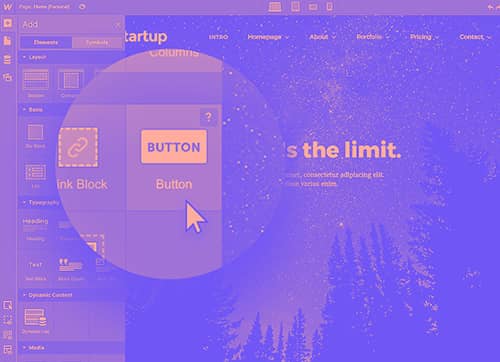
A button serves as your call to action (CTA) and links to pages, forms, assets, and more. They should be as universal and global as possible.

Custom Code
The following snippets were used in this project. There are three ways to add custom code to this project. You can embed it directly into your page, insert it in your page settings, or host it on another server and then embed it as a script file. You can also upload the script file within your project as an asset and embed it.
Dynamic Copyright Year
<script>
const year = new Date().getFullYear();
$('.year').text(year);
</script>
Title
Your Code